Node-RED Installation
-
Installation Based on Physical Machine
sudo apt update
curl -fsSL https://deb.nodesource.com/setup_20.x | sudo -E bash - &&\
sudo apt-get install -y nodejs
sudo apt install  npm
sudo npm install -g --unsafe-perm node-red
Based on Docker
mkdir /home/iotts/node_red
cd /home/iotts/
sudo chmod 777 node_red
sudo docker run -d --restart always -p 1880:1880/tcp -v /home/iotts/node_red:/data --name nodered nodered/node-red
Start on Boot
- Create a service
sudo nano /etc/systemd/system/node-red.service- Paste the following content in the editor:
[Unit] Description=Node-RED After=network.target [Service] ExecStart=/usr/bin/node /usr/bin/node-red User=sa [Install] WantedBy=multi-user.target- Reload the systemd manager configuration to make the new service effective:
sudo systemctl daemon-reload- Start the Node RED service and set it to boot up automatically:
sudo systemctl start node-red sudo systemctl enable node-red- Check the status of Node RED service:
sudo systemctl status node-redSet user password
- Open the settings. js file
vim /home/admin/.node-red/settings.js-
To modify the content of CredentialSecret, you need to set a key, not a login password. Save and exit.

-
Restart Ubuntu
sudo reboot- Generate username and password, using admin as an example here
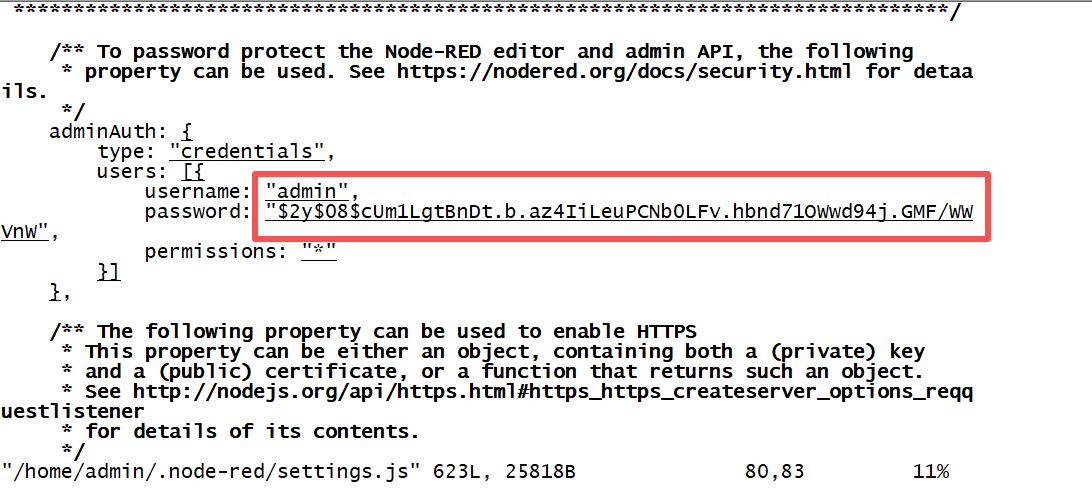
node-red admin hash-pwadmin@cp2b:~$ node-red admin hash-pw Password: $2y$08$cUm1LgtBnDt.b.az4IiLeuPCNb0LFv.hbnd71OWwd94j.GMF/WVnW-
Open the settings. js file, modify the content of adminAuth, and copy the string from earlier. Save and exit.
-
Restart Ubuntu
